Home relitePOS User Management Article
Role Management
Posted on 2022-11-21 Updated on 2022-11-21Adding Roles
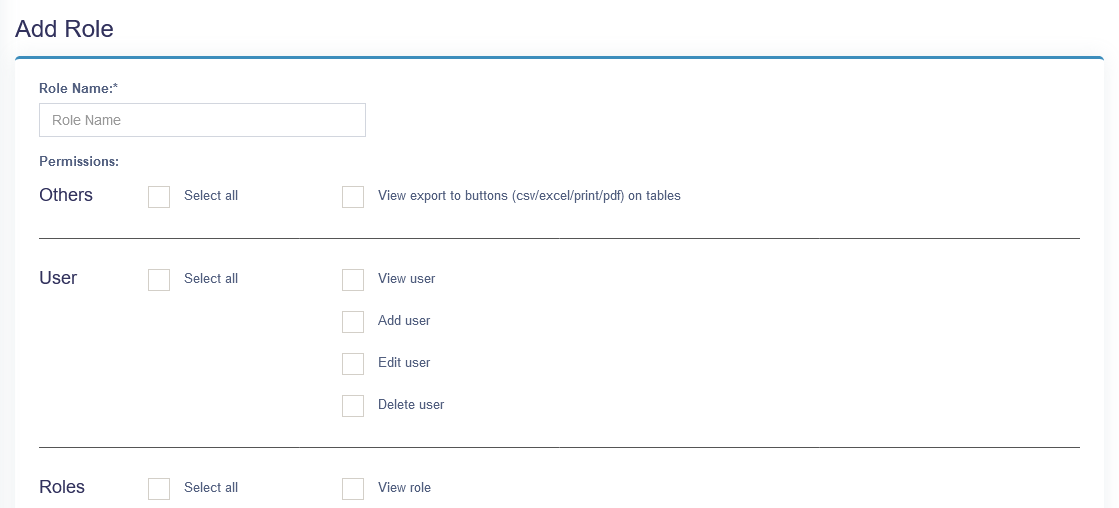
User Management -> Roles -> Add Role
- Every new business comes with some default roles – Admin & Cashier.
Admin have all permissions in the application.
Cashier have permission to only POS section. - You can create a role by clicking on Add button -> Giving a role name and then selecting the appropriate permission for that role.
- Sometime you may need to give a user access to a/some particular location(s) only. In this case, select the locations from “Access locations” permission. Select “All Locations” to give permission to access all locations for your business.
- Roles permissions can be edited & Deleted.
Refer to the image below
Note: You must update the role of an existing user before deleting a role.
Found this article helpful?
[ 0 Out of 1 Found Helpful ]