Home relitePOS Contact Management Article
Customer & Supplier Ledger
Posted on 2022-11-22To view customer or supplier ledger
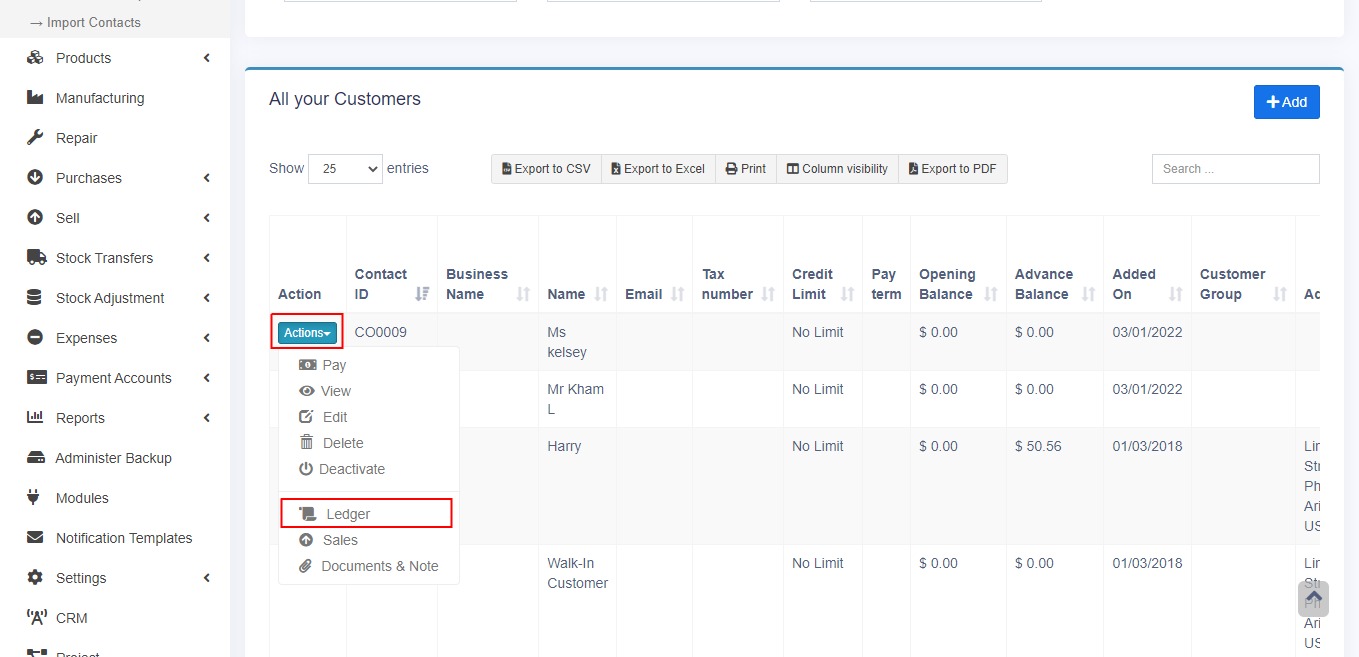
- Go to Contacts -> Supplier/Customer and click on actions button.
- In that you will be able to see Ledger for the customer or supplier.
- You can select a date-range and use the checkbox filters to show/hide certain transaction type.
Adding Discount for Customer/Supplier on Balance due:
- Discount for balance due amount can be added for customer/supplier.
- Click the add discount button on the customer/supplier ledger screen.
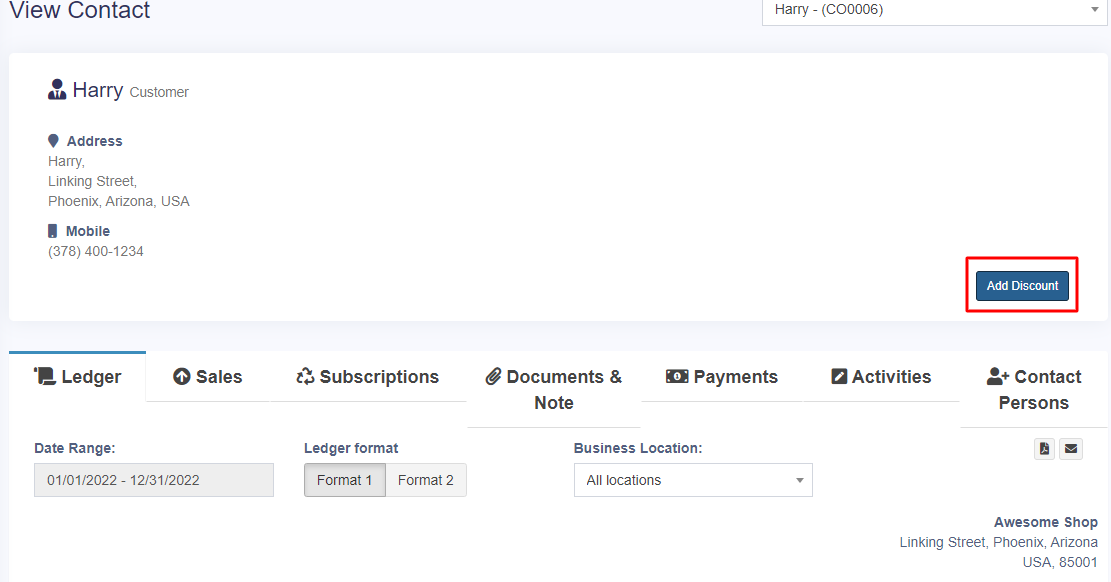 On clicking the button it shows a popup, enter the details and click save.
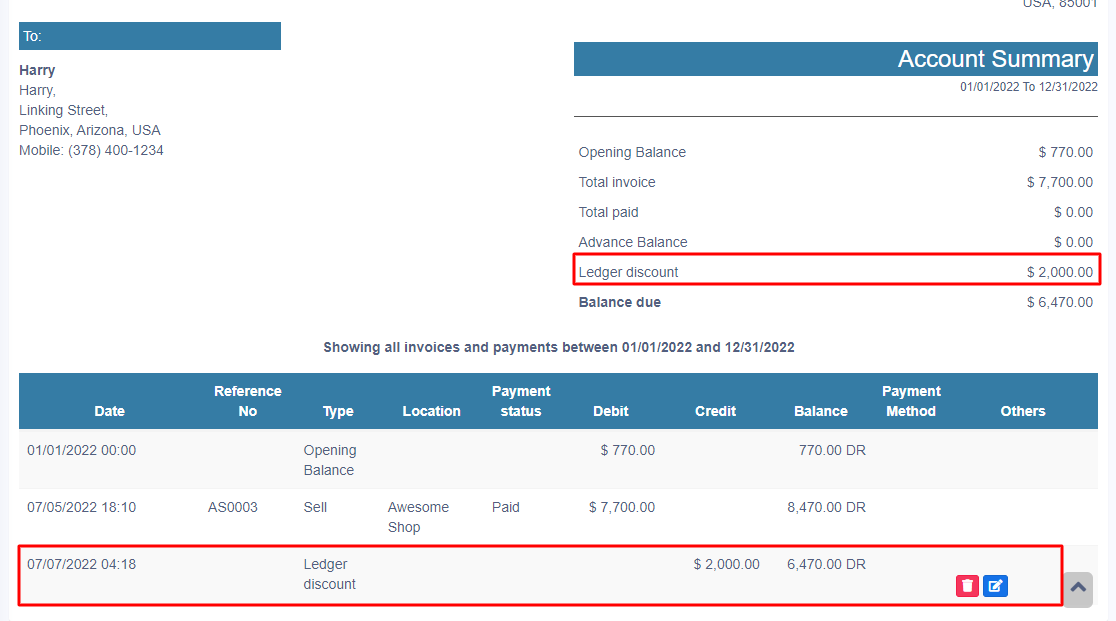
The discounted amount will be accounted for in their ledger.
 NOTE: This discount can only be added by the admin and not by other users.
Found this article helpful?
[ 0 Out of 1 Found Helpful ]